

How to Schedule Instagram Posts (2026 Step-by-Step)
Your boutique's Reel is shot, captioned, and sitting in your camera roll at 11 PM — but you're closing up, not opening Instagram to post it. By morning you've forgotten, or you post it at 9 AM instead of the 6 PM slot when your followers are actually scrolling. If you've searched how to schedule Instagram posts because you're tired of being the bottleneck between "content is ready" and "content is live," the good news is Instagram finally makes this easy natively — you no longer need a separate app for most of it.
This walks through every current method — scheduling directly in the Instagram app, using Meta Business Suite on desktop, and third-party tools — plus the parts nobody tells you: what you still can't schedule, and the daily caps that catch people off guard.
Can you schedule Instagram posts? Yes, natively, since March 2026
For years the honest answer was "sort of" — scheduling required either Meta Business Suite or a third-party tool, because the Instagram app itself had no native scheduler. That changed on March 1, 2026, when Instagram extended native content scheduling, the Insights dashboard, and trending audio access to every public account, not just Professional (Business/Creator) accounts as before (ALM Corp).
So today, any public Instagram account can schedule a feed post, a carousel, or a Reel directly from the app — up to 75 days in advance, with a cap of 25 scheduled posts per day (Sprout Social, ALM Corp). Private accounts and Stories are the two things this update doesn't cover — more on both below.
If your account is still set to private, or you haven't switched to a Professional account, that's the one prerequisite worth checking before anything else in this guide.
How to schedule an Instagram post directly in the app
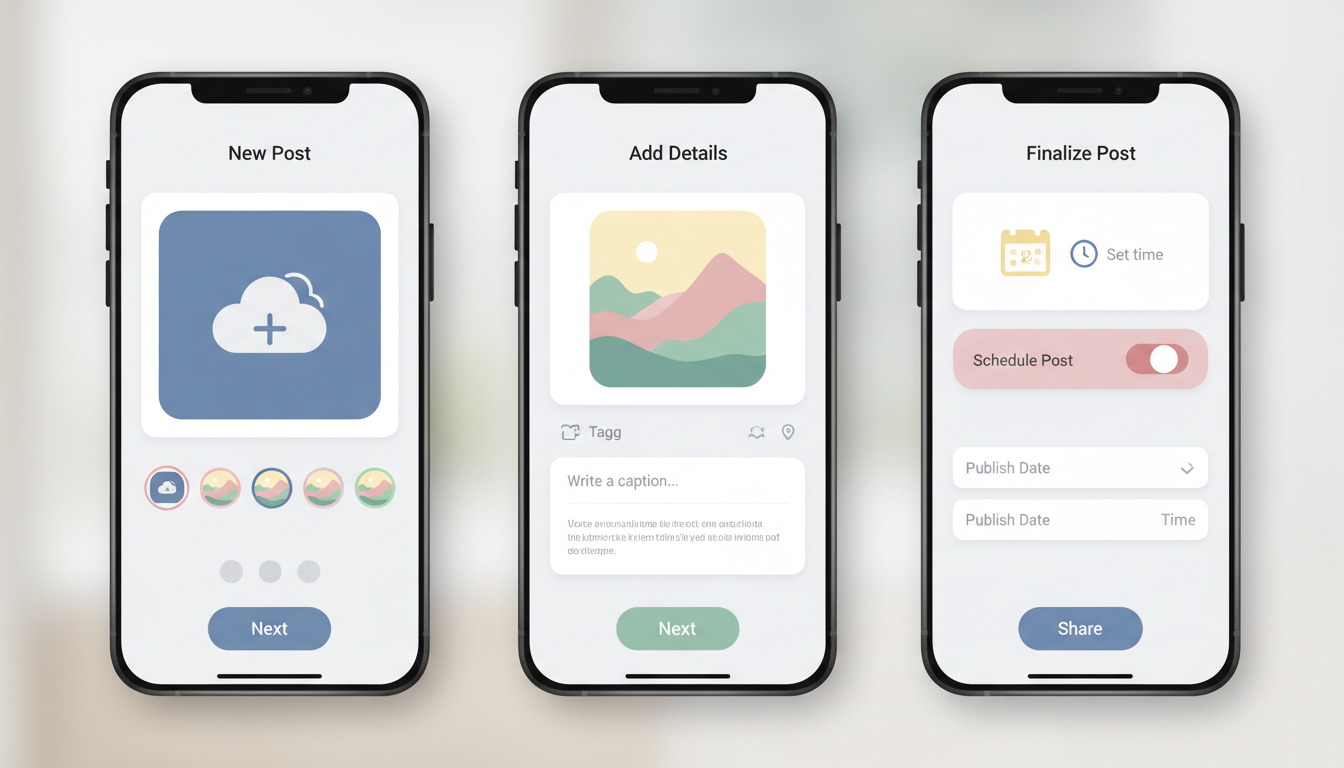
This is now the fastest route for most salons, boutiques, and home businesses posting from a phone between customers.
- Tap the + icon to create a new post or Reel, and upload or shoot your content as usual
- Add your caption, hashtags, tags, and location the way you normally would
- On the final screen before posting, tap More options (or the settings/gear icon depending on your app version)
- Toggle on Schedule this post (sometimes shown as "Schedule for later")
- Pick your date and time
- Confirm — the post moves to your Scheduled content queue instead of publishing immediately
To check or edit what's queued, go to your profile, open the menu, and look for Scheduled content under your professional tools. You can reschedule or delete a queued post from there before it goes live — it doesn't lock in until the moment it publishes.
What you can schedule natively (and what you can't)
The March 2026 rollout covers feed posts, carousels, and Reels. It does not cover Stories — those still can't be scheduled inside the Instagram app itself, for a structural reason: a Story's 24-hour expiry timer starts at the moment it publishes, and interactive stickers (polls, quizzes, sliders, questions) create server-side state only at publish time, which native scheduling isn't built to hold in a pending queue (Storrito).
A few other formats are also excluded from in-app scheduling: product-tagged posts, collaborative posts (co-authored with another account), sponsored/paid partnership posts, and fundraisers can't be scheduled — you'll need to publish those live (ALM Corp).
How to schedule Instagram posts using Meta Business Suite
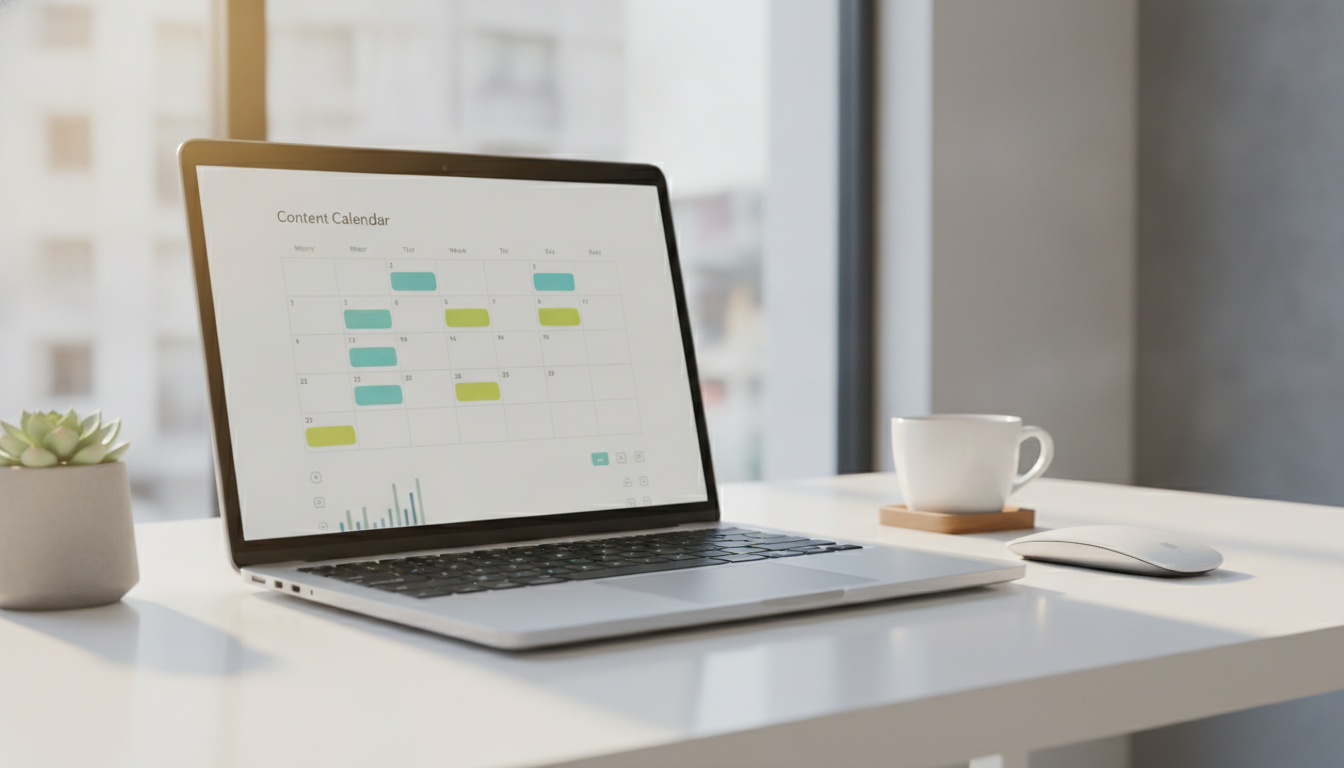
Meta Business Suite is still the better option in two specific cases: you want to schedule from a desktop/laptop instead of your phone, or you specifically need to schedule a Story — which the native app still can't do, but Business Suite's mobile app can.
Requirement first: your Instagram professional account needs to be linked to a Facebook Page to use Business Suite's scheduling tools (Meta Business Help Center).
On desktop:
- Log into business.facebook.com and open Meta Business Suite
- Click Create post or Create reel, and select which Instagram account you're posting to
- Upload your media, then write your caption — mentions, hashtags, and location tag all work here
- Under Scheduling options, toggle on Set date and time
- Pick your slot — Business Suite shows an Active times panel with a snapshot of when your audience is typically online, if you want a data-backed suggestion instead of guessing
- Click Schedule to confirm
On the Business Suite mobile app, the flow is similar but includes Story scheduling: tap Schedule for later, pick your date and time, then tap Schedule to finish.
Feed posts, Reels, carousels, and Stories — through Business Suite
Business Suite schedules the same core formats the native app does — single images, carousels, and Reels — plus Stories, which is its main advantage over scheduling from the Instagram app alone. The trade-off: polls, quizzes, question stickers, and emoji sliders are only available in Instagram's native Story editor, so a Story scheduled through Business Suite can't include those interactive elements (Storrito).
Third-party Instagram schedulers — when you'd actually need one
For a single account posting a handful of times a week, native scheduling or Business Suite covers almost everything. Third-party tools like Buffer, Later, Hootsuite, and Metricool earn their keep once you're managing multiple accounts, need a visual content calendar/grid preview, want team approval workflows, or need analytics deeper than Instagram's own Insights.
- Later — built around a drag-and-drop grid planner, useful if you're mentally arranging your feed's visual layout before you post
- Buffer — simplest interface, a common starting point for a single small-business account
- Hootsuite — built for managing several accounts/platforms at once, with heavier analytics
- Metricool — leans into performance data and best-time recommendations
These tools connect through Meta's official publishing API (the same permission system Business Suite uses), so the posting mechanics are similar — schedule ahead, and it auto-publishes at the set time. The real differentiator is the planning layer around the schedule, not the scheduling itself.
A word on caption formatting
If you've ever pasted a caption with line breaks into a scheduler and had them collapse into one paragraph, that's a known quirk with several third-party tools and Instagram's API handling of line breaks — worth a quick preview check before your scheduled time, especially the first time you use a new tool.
Do you actually need one?
Run this quick check before paying for a scheduler: if you're posting to one Instagram account, a handful of times a week, and mostly care about "did it go out on time," native scheduling or Business Suite already does the job for free. If you're juggling two or three business accounts, need someone else on your team to approve captions before they go live, or want to see your whole month's grid laid out visually before committing, that's when the monthly fee for Later, Buffer, or Hootsuite starts paying for itself. Most single-location salons and boutiques fall in the first group — check native scheduling first before adding a subscription.
The limits worth knowing before you plan a week of content
A few numbers to actually work around, not just skim:
| What | Limit |
|---|---|
| Posts scheduled per day | 25 (native + Business Suite) |
| How far ahead you can schedule | 75 days |
| Stories | Not schedulable in native app; possible via Business Suite mobile, without interactive stickers |
| Product tags, collabs, paid partnerships, fundraisers | Cannot be scheduled — must post live |
| Account type | Public account required (private accounts can't schedule) |
Key insight: the 25-post daily cap sounds generous until you're scheduling a full month of content in one sitting — batch in weekly chunks rather than trying to load 75 days at once, so you're not fighting the ceiling on day one.
Scheduling only works if there's something worth scheduling
Here's the part that trips up most small business owners: they solve the "I keep forgetting to post" problem with a scheduler, then sit down on a Sunday with an empty queue and no plan for what actually goes in it. A scheduling tool moves posting off your plate — it doesn't decide what a boutique in Jaipur should post on a Tuesday versus what a Bangalore salon should post on a Thursday. That's a content-planning problem, and it's the one that actually eats the time.
Think about what a scheduler needs from you to be useful: finished photos, a caption, and a decided time. For a lot of local businesses, the bottleneck was never the "decided time" part — it's having the finished photo and caption ready at all, week after week, without hiring someone to shoot and write it. A queue full of "I'll figure this slot out later" placeholders isn't a content calendar, it's just a to-do list with dates on it.
This is where a real content calendar earns its place ahead of any scheduler: instead of opening Instagram with a vague sense you "should post something," you're pulling from a week or month of already-planned Reels, product shots, and captions, and just dropping them into the schedule slots above. Pair a posting-time strategy with an actual content plan, and scheduling stops being a chore you dread and becomes the last five-minute step in a system that already ran itself.
FAQ
Can you schedule Instagram posts for free? Yes. Scheduling directly in the Instagram app and through Meta Business Suite are both free — no subscription required, since they're Meta's own tools. Third-party schedulers like Buffer or Later add features (multi-account management, visual grid planning, deeper analytics) but usually charge a monthly fee past a free tier.
How far in advance can you schedule an Instagram post? Up to 75 days ahead, whether you're using the native in-app scheduler or Meta Business Suite. The 25-posts-per-day cap applies across both, so scheduling a full 75 days in one sitting isn't realistic — plan in weekly or monthly batches instead.
Why can't I schedule my Instagram Story? Stories still can't be scheduled from the native Instagram app, even after the March 2026 scheduling update — the format's 24-hour expiry and interactive stickers (polls, quizzes, sliders) require publish-time processing that a queued post can't hold. Meta Business Suite's mobile app can schedule Stories, but without those interactive stickers.
Do scheduled Instagram posts perform worse than posting live? No published Meta or independent data shows scheduled posts getting deprioritized versus live posts — the algorithm treats a scheduled post as a normal publish once it goes live. What actually affects reach is timing and content quality, not whether it was scheduled or posted manually.
Can I schedule Reels the same way as regular posts? Yes. Reels are included in both the native in-app scheduler and Meta Business Suite, alongside single-image posts and carousels, with the same 75-day/25-per-day limits applying.
Scheduling itself takes two minutes once you know where the toggle is — the harder problem is never running out of things worth scheduling. Open your Instagram app, check whether Scheduled content appears in your professional tools menu, and queue your next three posts using the steps above. If the gap in your week is really "I don't know what to post," not "I forgot to hit publish," Scalio turns a product photo and your brand details into a batch of model-wearing photos, Reels, and a ready content calendar — so you're scheduling a real week of content, not scrambling to fill an empty queue. From ₹999/month, instead of a ₹10K+ agency retainer. Start at scalio.app.